Where Can I Find My Lightroom Presets Folder?
One of the most recent frustrations we experienced was all of our Lightroom presets disappearing on us. We’re not quite sure how it happened – but think they might have been connected to a Lightroom Catalog we deleted from the app as we were cleaning things up.
Initially, we thought we lost all of our presets! It was a scary period of time – especially because we have quite a few we have created ourselves in the course of running our own wedding photography business.
As we came to learn, it’s easy enough to find the Lightroom presets and get them reconnected with our actual application. In about 15 minutes – from realization that they had gone missing to fixing the problem – we were able to get back up and running on our photo editing.
How to Find Your Lightroom Presets Folder
Every computer and operating system is different, but your Lightroom presets will consistently be found in the same location. This is because of how Lightroom as an application is designed. Fortunately, it makes it much easier to find your presets – which is the key part to getting them to sync with your LR catalog.
Below are the folder locations you should be looking for broken out by your version of Lightroom, and the OS you are using:
Lightroom CC presets folder locations
- Mac OSX: /Users/[user name]/Library/Application Support/Adobe/Lightroom/Develop Presets
- Windows 7: C:\Users\[user name]\AppData\Roaming\Adobe\Lightroom\Develop Presets
- Windows 8: C:\Users\[user name]\AppData\Roaming\Adobe\Lightroom\Develop Presets
- Windows 10: C:\Users\[user name]\AppData\Roaming\Adobe\Lightroom\Develop Presets
Lightroom 6 presets folder locations
- Mac OSX: /Users/[user name]/Library/Application Support/Adobe/Lightroom/Develop Presets
- Windows 7: C:\Users\[user name]\AppData\Roaming\Adobe\Lightroom\Develop Presets
- Windows 8: C:\Users\[user name]\AppData\Roaming\Adobe\Lightroom\Develop Presets
- Windows 10: C:\Users\[user name]\AppData\Roaming\Adobe\Lightroom\Develop Presets
Lightroom 5 presets folder locations
- Mac OSX: /Users/[user name]/Library/Application Support/Adobe/Lightroom/Develop Presets
- Windows 7: C:\Users\[user name]\AppData\Roaming\Adobe\Lightroom\Develop Presets
- Windows 8: C:\Users\[user name]\AppData\Roaming\Adobe\Lightroom\Develop Presets
- Windows 10: C:\Users\[user name]\AppData\Roaming\Adobe\Lightroom\Develop Presets
Lightroom 4 presets folder locations
- Mac OSX: /Users/[user name]/Library/Application Support/Adobe/Lightroom/Develop Presets
- Windows Vista: C:\Users\[user name]\AppData\Roaming\Adobe\Lightroom\
- Windows 7: C:\Users\[user name]\AppData\Roaming\Adobe\Lightroom\
Lightroom 3 presets folder locations
- Mac OSX: /Users/[user name]/Library/Application Support/Adobe/Lightroom/Develop Presets
- Windows Vista: C:\Users\[user name]\AppData\Roaming\Adobe\Lightroom\
- Windows 7: C:\Users\[user name]\AppData\Roaming\Adobe\Lightroom\
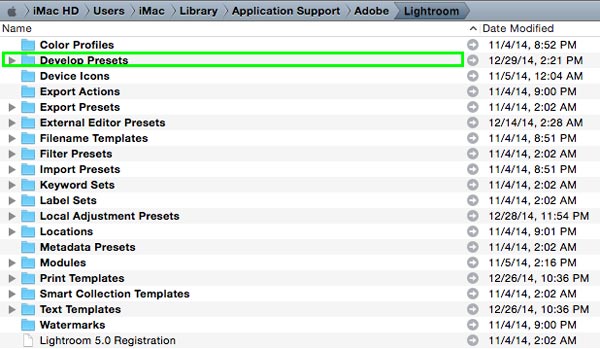
For your reference, the folder you are ultimately looking for in most of these instances is the “Develop Presets” folder as seen below:
Alternative Way to Find Your Lightroom Presets Folder
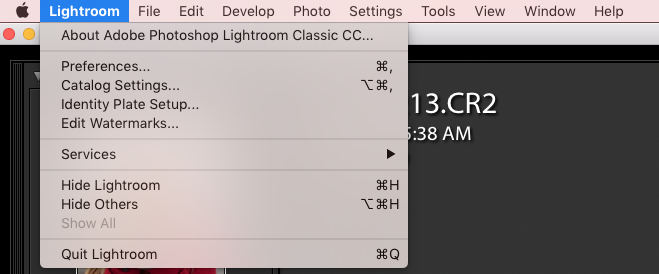
While you can certainly hunt down the folder by searching through your hard drive, there is an easier way to do this built right into Lightroom itself. To do this, simply follow the next steps:
- In Lightroom, go to “Preferences”
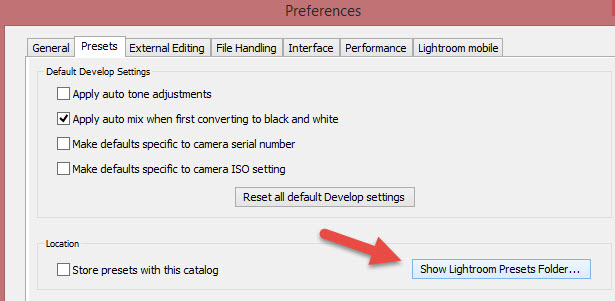
- In the “Preferences” window, click on “Show Lightroom Presets Folder…”
- The Lightroom presets folder (as described above) will open
That’s quick and easy!!
Want some new Lightroom presets?
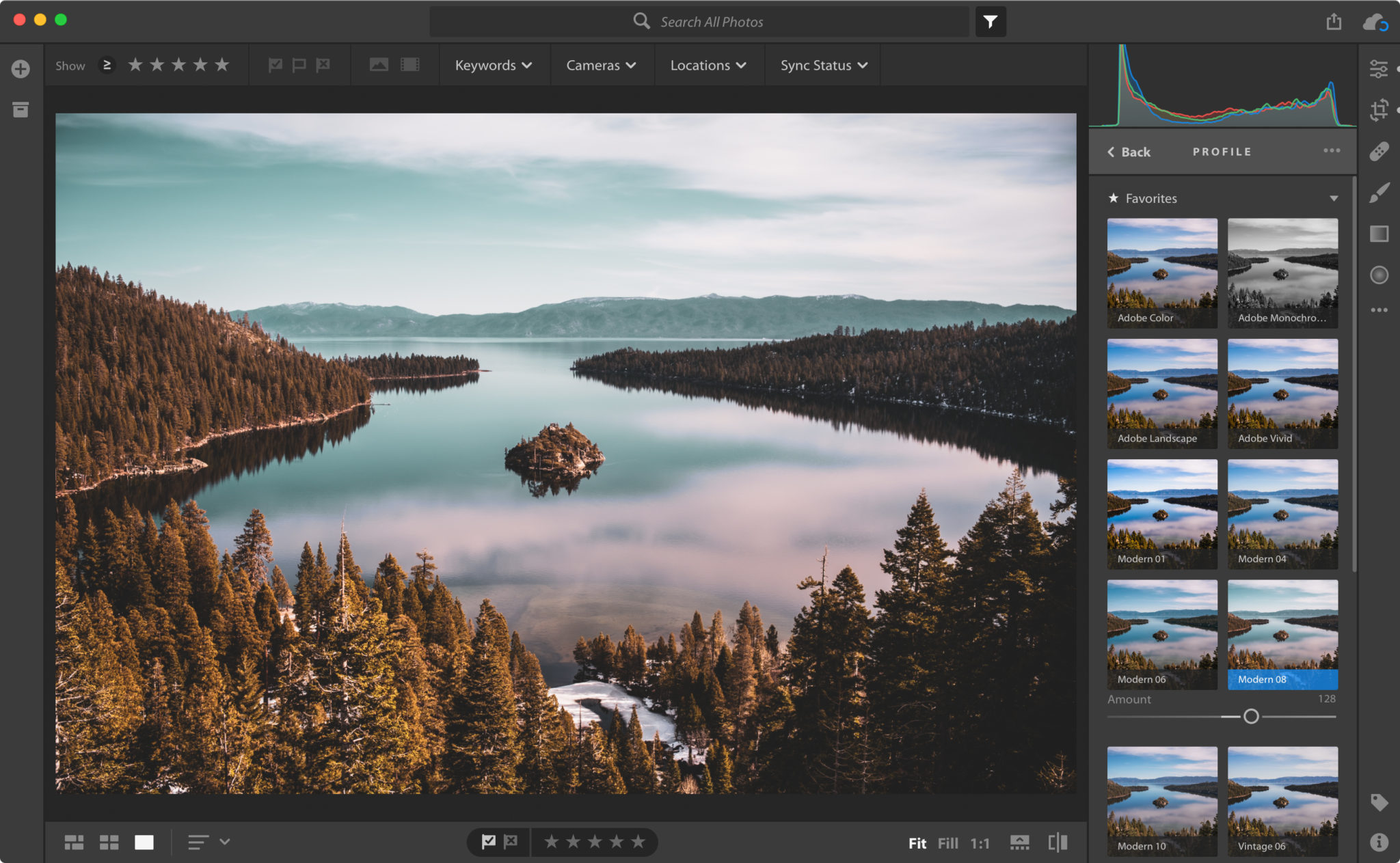
We talk about the importance of having great LR presets in our article 101 Digital Photography Tips – A Guide to Taking Great Photos. Our photography is hugely inspired and made a reality not only by us being capable of nailing a great exposure in our cameras, but because we are able to take these RAW image files and edit them to our liking. This post processing allows us to create more stylistic, sometimes cinematic, and more awe inspiring images.
While we currently are using our own custom made presets (we hope to release some soon for purchase!), there are a lot of great Lightroom preset brands out there we have used in the past and can recommend. These include: SleekLens, Mastin Labs, Lightagram, and BeArt. Recently, we’ve been especially in love with Signature Edit’s Genesis Collection.
Interested in going beyond Lightroom presets?
In recent years, AI editing tools like Aftershoot have made editing photos even easier than traditional LR presets. At a minimum, tools like these offer an alternative solution to presets since you can customize your own unique profiles (to get AI editing that matches your style) or select pre-made editing “profiles” that essentially function like a preset (but with added ability to use AI to customize the edit to each image, while presets cannot do this).
Hopefully you found this article on finding your Lightroom presets folder to be helpful.
Please feel free to leave a comment if you have any questions, and we can help you out!!